Instructions
Create and apply custom instructions to guide v0's responses
Instructions are reusable prompts you can save to your account and apply on-demand when chatting with v0. Use them to customize v0's behavior for specific tasks or workflows.
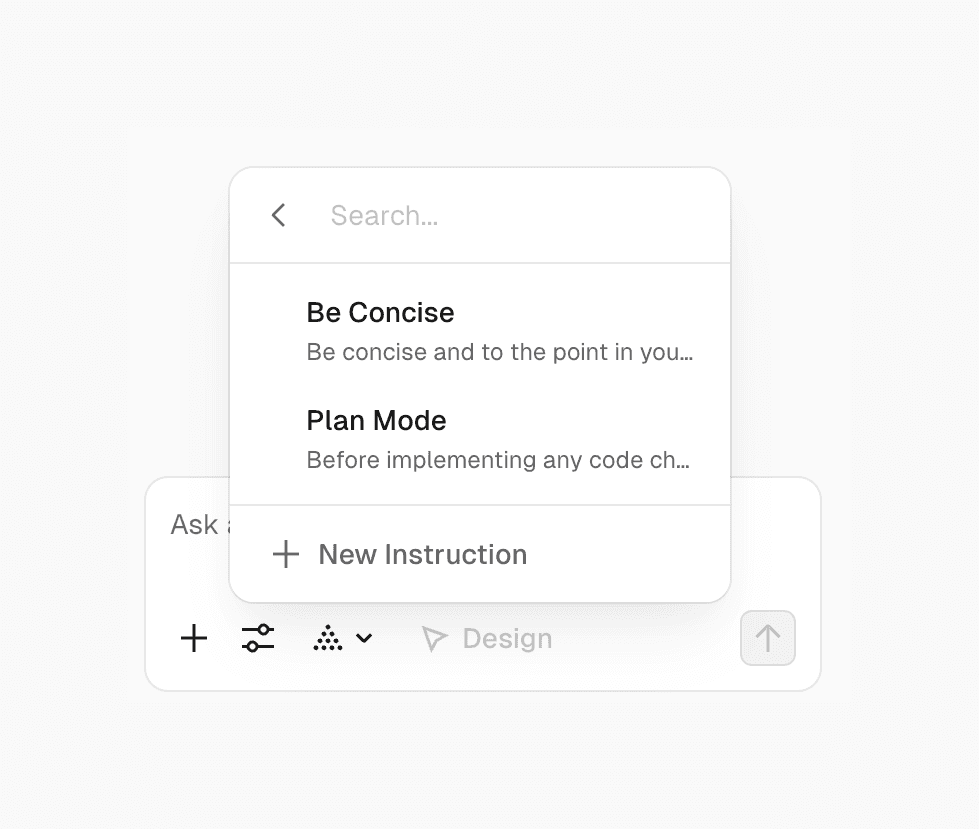
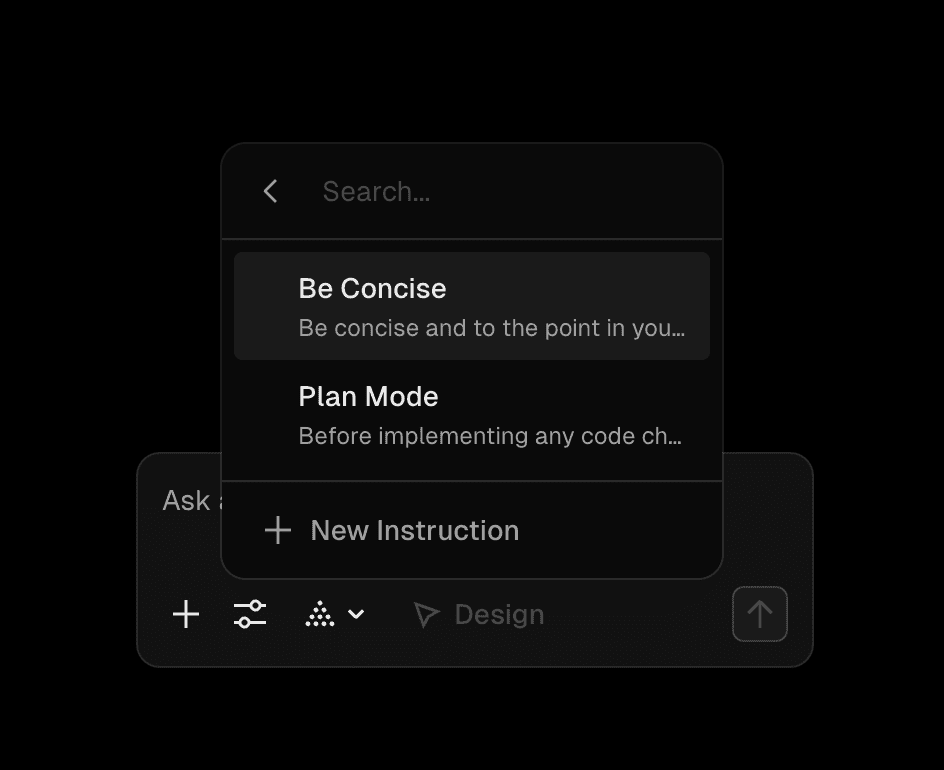
Built-in presets
v0 includes built-in preset instructions:
- Be Concise - v0 will provide shorter, more direct responses
- Plan Mode - Before implementing any code changes, v0 creates a detailed plan outlining the approach, steps, and potential challenges, then asks for your approval before proceeding
Creating custom instructions
Create your own instructions for common workflows or preferences:
- Click the + button in the prompt bar
- From Instructions, select New Instruction
- Add a Title (e.g., "Mobile first")
- Add the Rule content (e.g., "Always design for mobile screens first, then adapt the layout for larger screens")
- Click Add
Your instruction is now saved to your account and available across all your chats and projects.
Applying instructions
To apply instructions to your conversation:
- Click the + button in the prompt bar
- Check the instructions you want to apply
- Send your prompt
You can enable multiple instructions at once. Checked instructions will be applied to your messages until you uncheck them.